
LotProof customer setup guide
Your first vehicle, step by step
Follow this guide once and you will know the complete LotProof workflow—from starting your trial through reviewing a Marketplace draft.
Welcome, trial testers
Get the two-page guide with setup steps, video links, pricing, and cancellation instructions.
Watch the LotProof workflow
An 81-second visual walkthrough of scanning a vehicle, reviewing the details, and preparing a Marketplace draft. Follow the illustrated steps below for setup instructions.
Before you begin
- • Use Google Chrome on a desktop computer.
- • Sign in to the correct Facebook account.
- • Have one dealership vehicle-detail page ready.
- • Keep your activation key private.
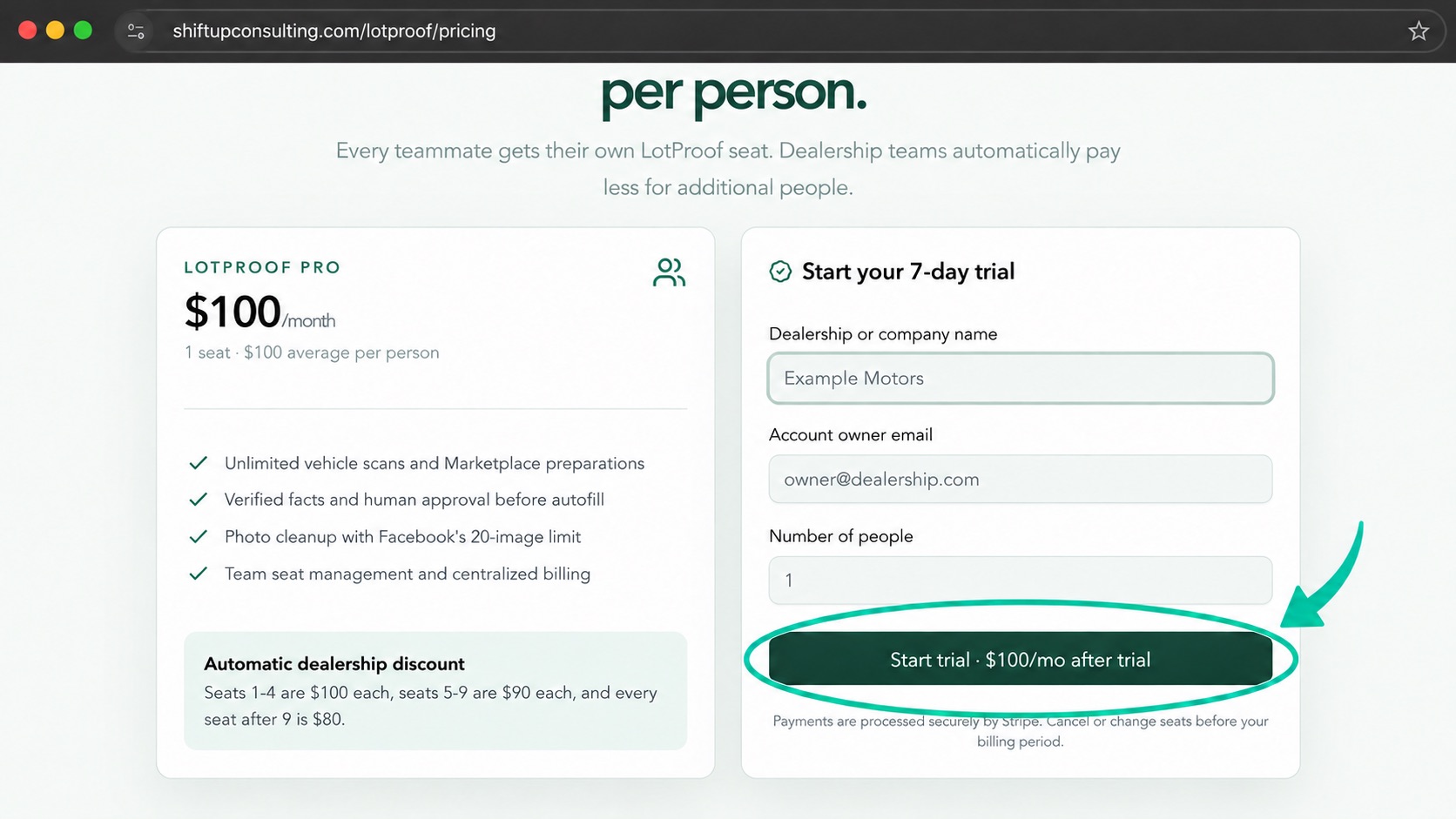
Start your subscription
Choose the number of people who need LotProof. Checkout starts a 7-day trial, and billing begins only after the trial ends.
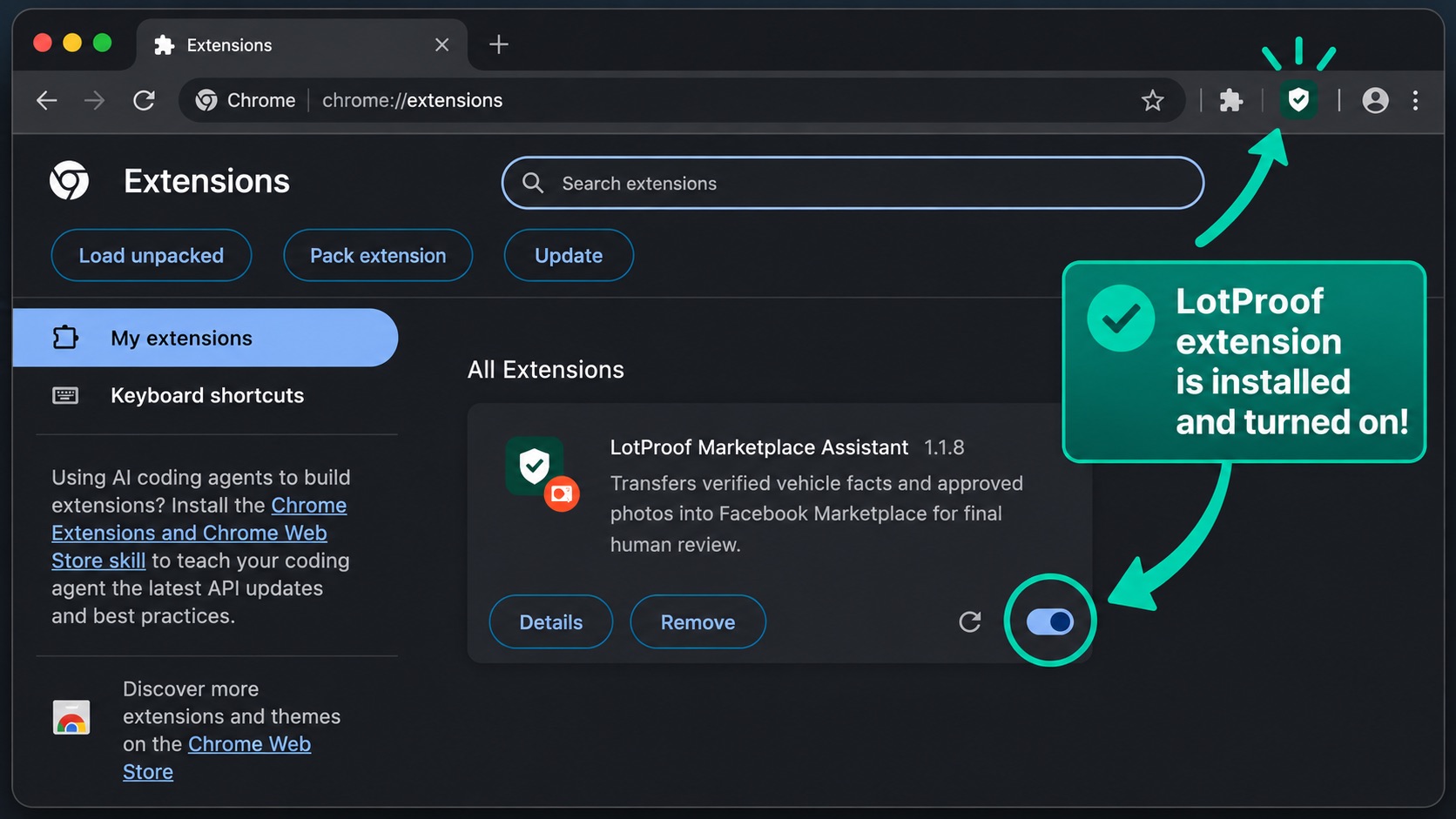
Install and activate
Install LotProof from the Chrome Web Store, pin it, open it, and paste the private activation key shown after checkout.
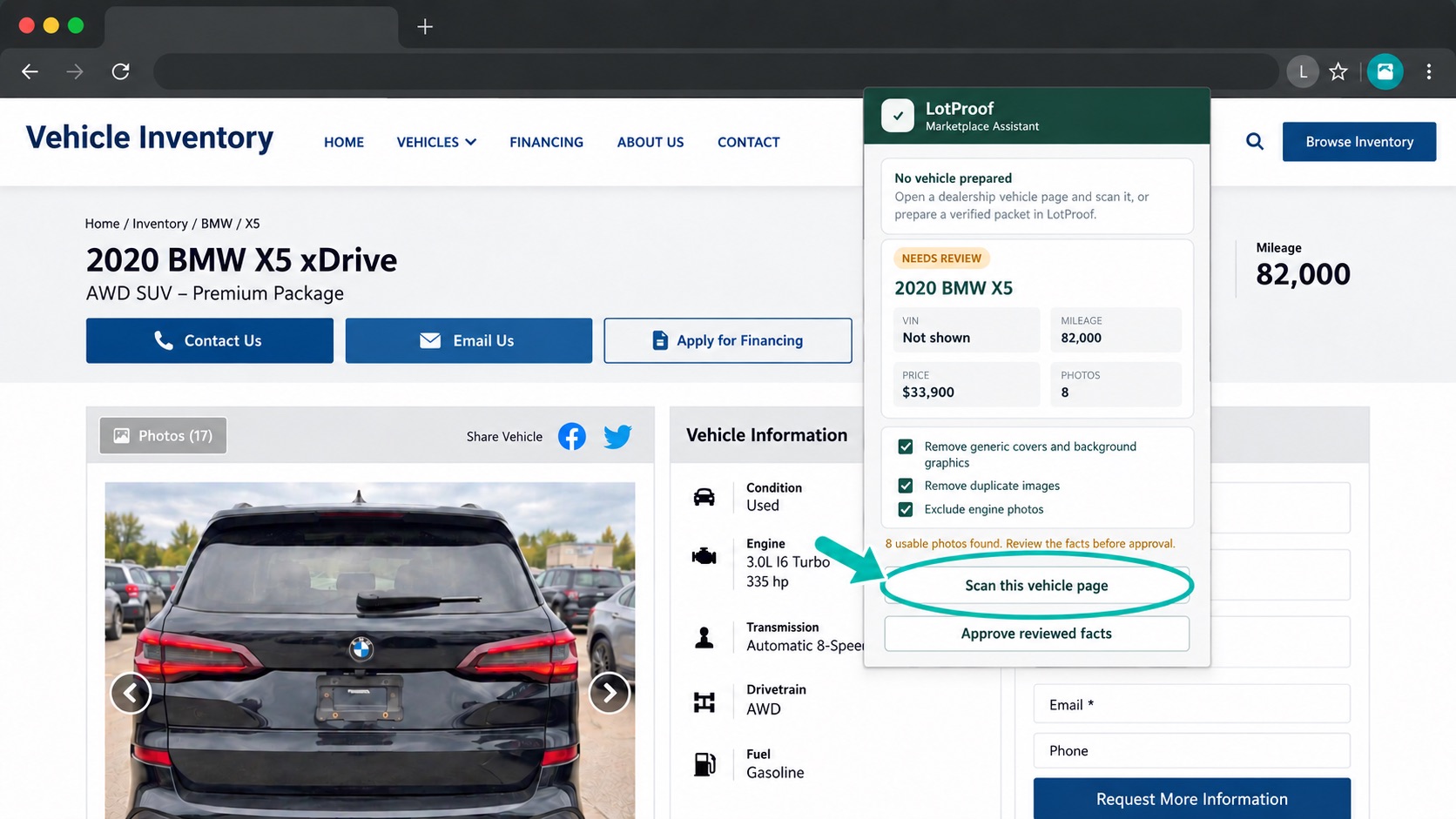
Scan the full vehicle page
Open one vehicle-detail page, wait for its specifications and photo gallery to load, then choose Scan this vehicle page.
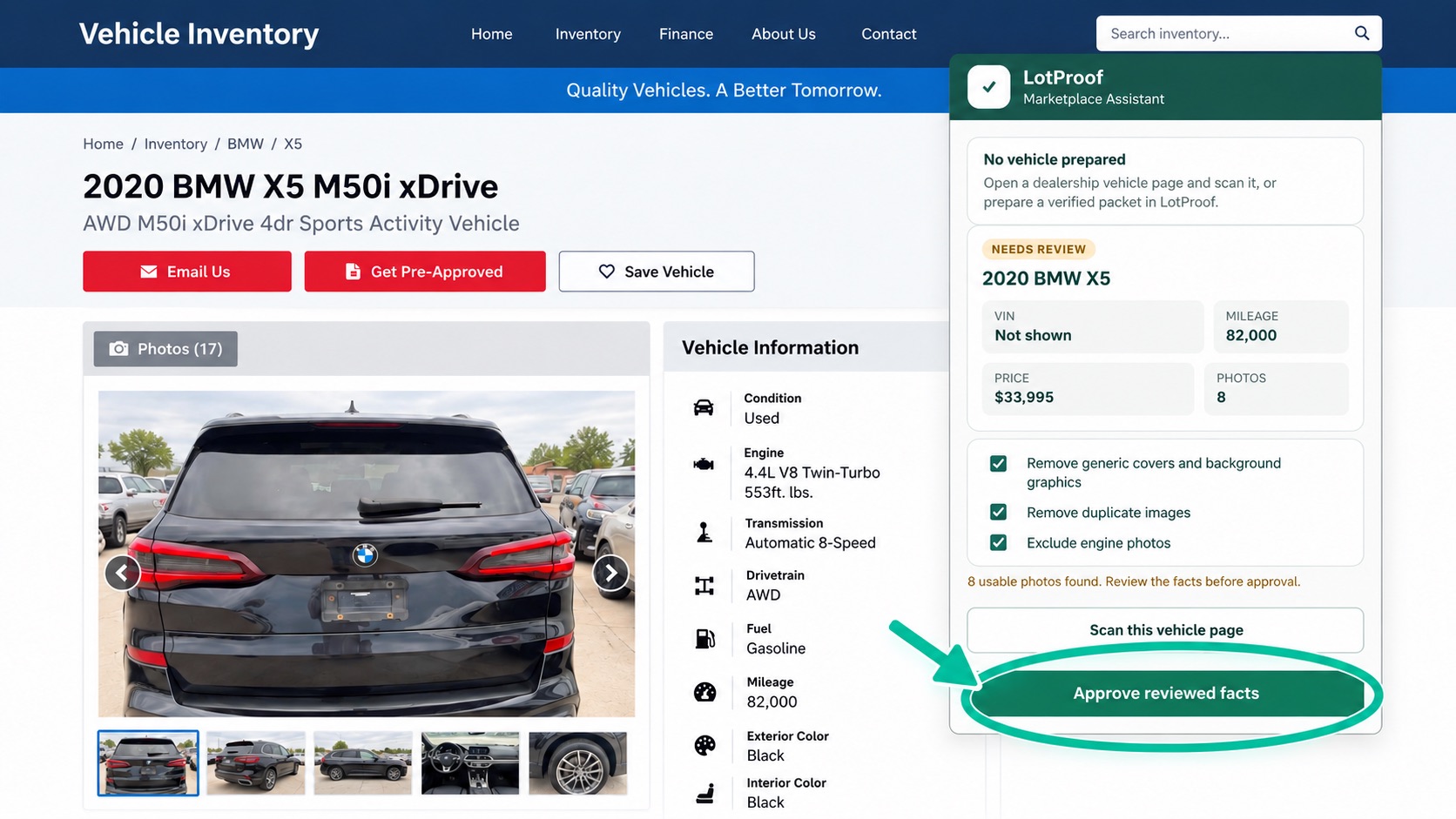
Review the evidence
Confirm the year, trim, mileage, engine, drivetrain, body style, colors, fuel type, price, VIN, and selected photos before approval.
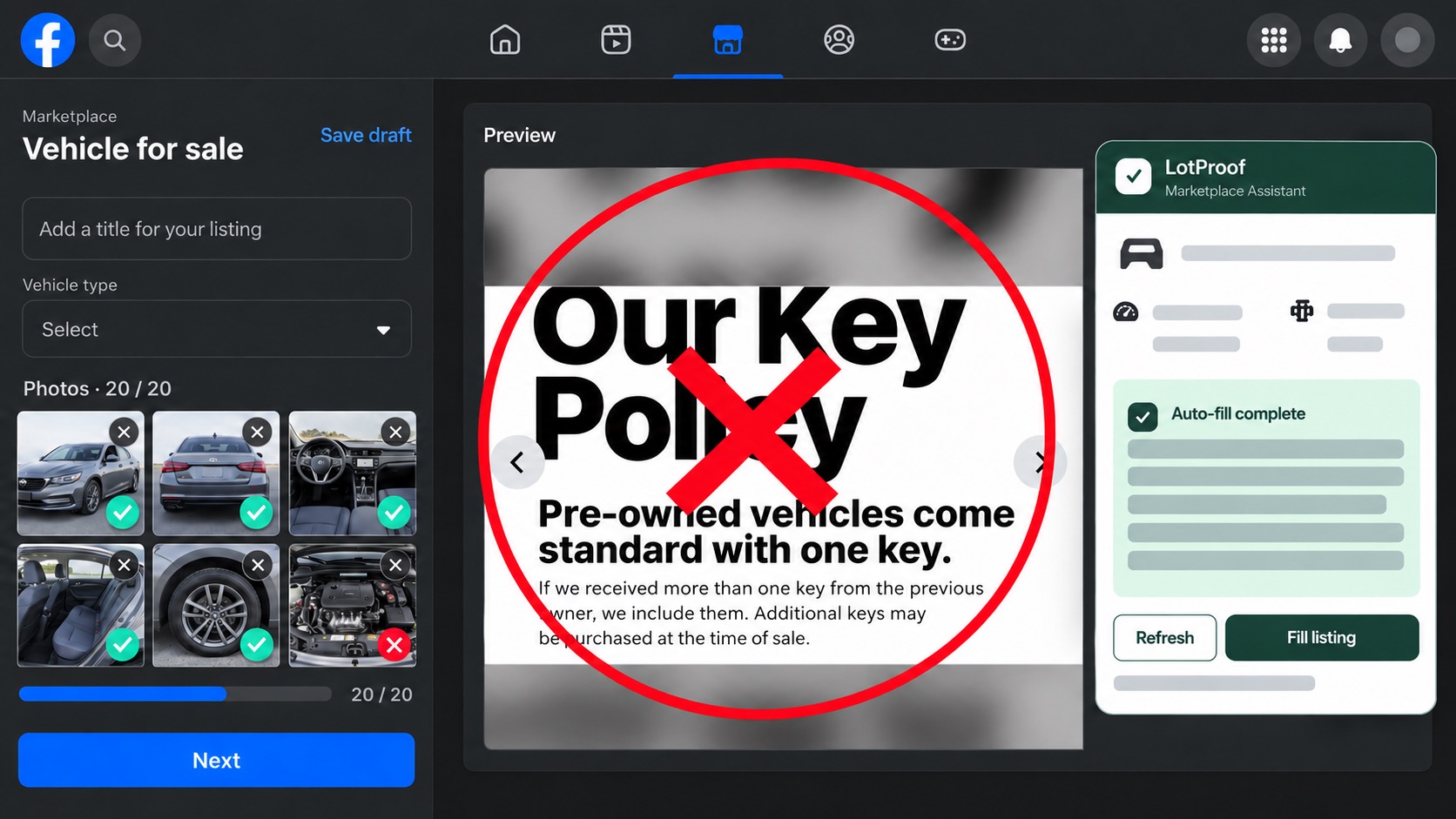
Check the photo set
Remove any remaining text slides, promotional graphics, branded overlays, duplicates, engine photos, or poor crops. LotProof keeps no more than 20 photos.
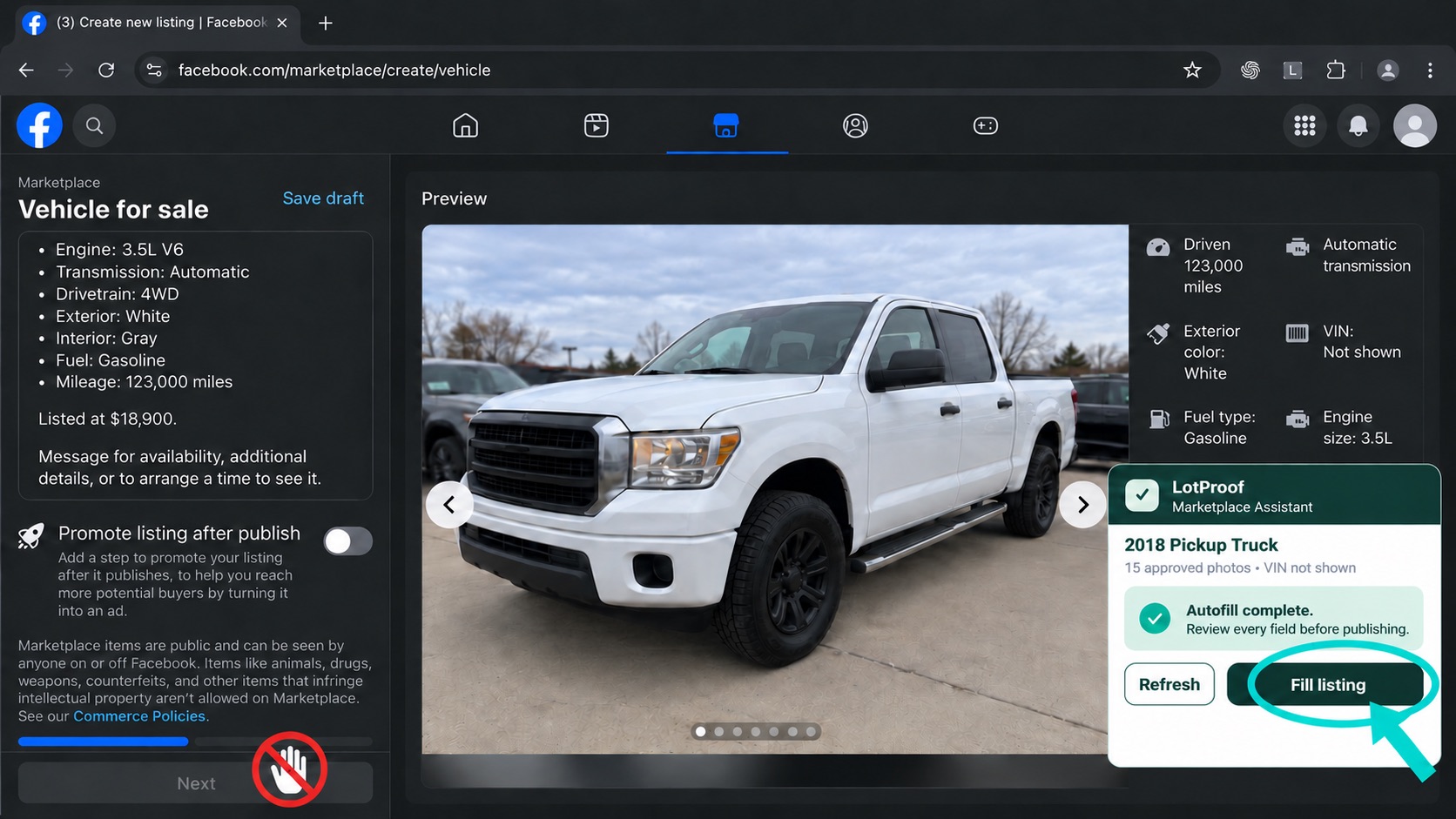
Prepare Marketplace
Approve the facts, open a blank Facebook Marketplace vehicle form, and choose Fill listing. Review everything before you publish.
Final review before publishing
Confirm the listing location, vehicle condition, body style, colors, fuel type, mileage, price, description, and every photo. LotProof prepares the draft but never presses Facebook’s final Publish button.
Troubleshooting
- If a field is missing, reload the vehicle page, wait for the gallery and specifications to finish loading, then scan again.
- If LotProof stops on a Facebook choice, close that menu, select the correct value manually, and continue reviewing the remaining fields.
- If photos still contain text or branding, remove those photos from the draft before publishing.
- If activation fails, confirm the subscription is active and that the dealership has an unused paid seat.